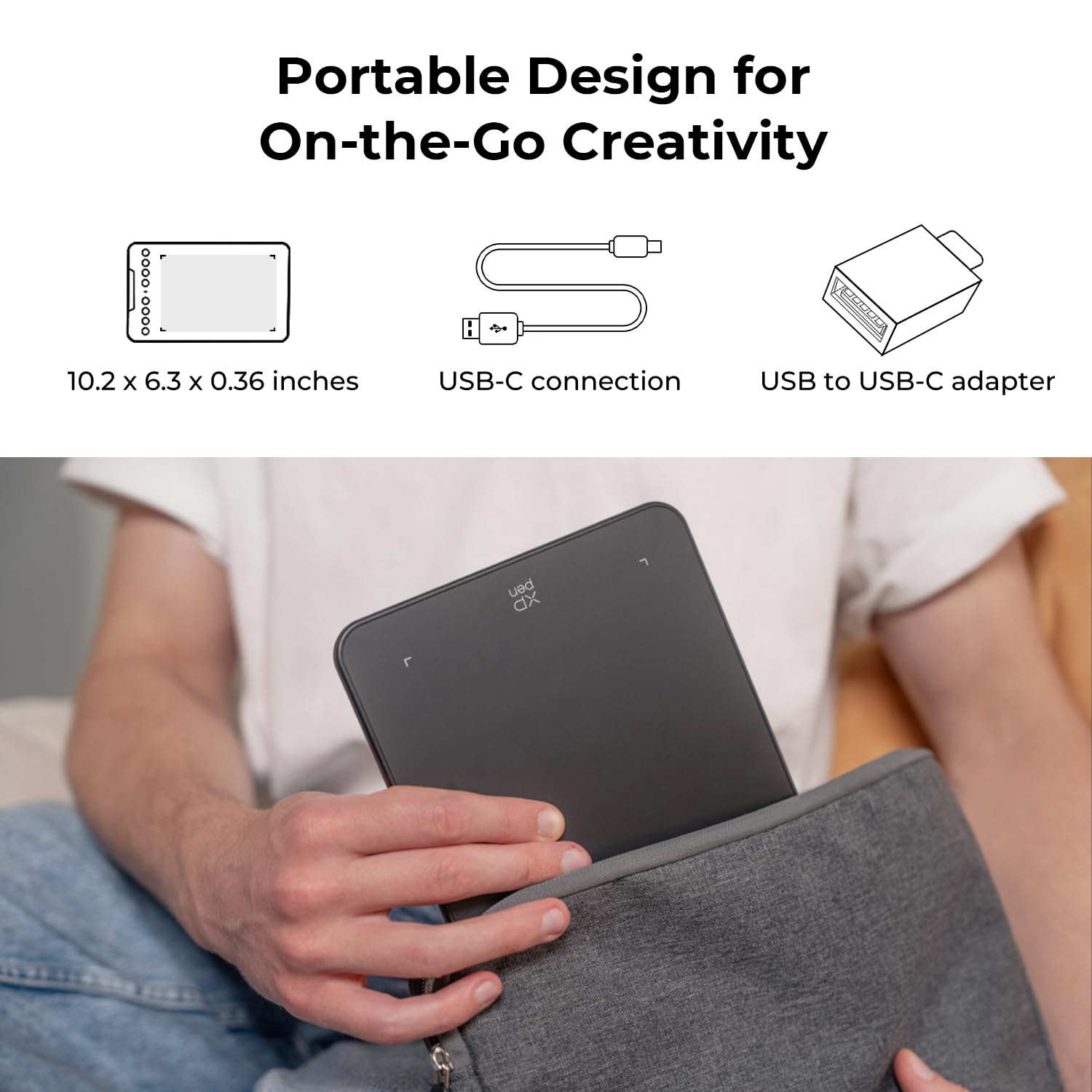


🎨 Elevate your art game with precision and portability—don’t just create, dominate!
The XPPen Deco Mini7 V2 is a sleek, portable drawing tablet featuring 16,384 levels of pressure sensitivity and a battery-free stylus with 60° tilt recognition. Designed for beginners and pros alike, it offers 8 customizable hotkeys and broad OS compatibility including Windows, Mac, Android, Chrome OS, and Linux. Its compact 7x4 inch active area and USB-C connectivity make it perfect for on-the-go digital art, gaming, and teaching, delivering professional-grade performance at a budget-friendly price.










| ASIN | B08CDZ5NLX |
| Best Sellers Rank | #5 in Computer Graphics Tablets |
| Customer Reviews | 4.5 4.5 out of 5 stars (15,164) |
| Date First Available | July 6, 2020 |
| Is Discontinued By Manufacturer | No |
| Item Weight | 1.17 pounds |
| Item model number | CRDeco mini7 |
| Manufacturer | XP-PEN |
| Product Dimensions | 6.39 x 10.24 x 0.04 inches |
J**C
Superb, budget-friendly drawing pad.
I am new to digital arts and tablets like this, so I don't have a lot to compare this to. However, I have been very pleased with mine. It is very responsive, works flawlessly, and I have had no issues at all. It seems built well, feels lightweight, and the small size makes super portable. It takes some getting used to to to draw while looking at your computer screen, but that eventually works okay too, once you get used to it. If you are in the market for a budget-friendly drawing pad, this will suit your needs perfectly. The pen works great too. I was annoyed at first because I kept accidentally clicking buttons on it while drawing, but after using for about a day, my fingers figured it out and this is no longer a problem. I like the wide grip, which makes it more comfortable to hold.
T**H
has probably permanently replaced wacom in my life
Very solid tablet pen with clear, easy-to-use interface and beautiful (and adjustable!) pressure sensitivity. I use Paint Tool Sai, a pretty old, pretty niche program, and it still works like a dream. The working size is perfect for me, but I find myself wishing it extended more closely to the bounds of the tablet itself (or rather, that the tablet itself hugged the working space more closely), just for easier portability as well as a clearer sense of where my hand is in relation to the working space at any given moment. The pen is nice and comfortable, I've had no connectivity problems (but granted I can only use it plugged in), and between you and me, within my first month of owning this thing, I accidentally spilled like half a small bottle of acetone all over it. Like, parts of the buttons kind of melted. And you know what? I was not expecting it to, and would have thought it perfectly fair if I'd needed to replace it, but it still worked perfectly afterwards. Robust and reliable!
D**Y
Really good starter tablet.
Pretty good tablet for the price. It has decent tilt and pen pressure. Only draw back I've found is the smoothness of it is a little lacking. This is really good for a beginner or as a travel tablet you wouldn't mind losing... its not really an replacement for a good top tier tablet though. Easy set up and lots of buttons to map. Came with a good amount of extra tips. Works well. *Note: The pen pressure only works through windows ink system... if you set it up using mouse settings it wont have pressure.
B**E
Comparison Review between XP-Pen Deco01 v2 and Huion H1060P
I'm writing this review because I wish there was one like it when I was agonizing over what my first drawing tablet would be. I've mostly used an XP-Pen deco 01 v1 for many years and it was fine, but when it broke (more on that below), I really wanted to try a Huion since they have such good reviews. Huion vs Xp-Pen This is a comparison between the Xp-Pen Deco 01 (v2) and the Huion Inspiroy H1060P. They both have nearly identical price points and specs. I got both on discounts for around $50 on average. I am not a professional artist, but I do draw a lot (several hundred hours on my tablet) and have been paid for my work, but I'm not as skilled as professionals. I mostly do character sketches and inking comic-style. For my style and what I need, both tablets are great. They are very precise and allow me to execute and get the end result that I want. Pen pressure ability is the same between the two, I can make clean, tapered strokes with each just fine. The Huion is set to a "harder" pressure than the Xp-Pen, and while both tablet drivers allow changing pressure curves, the Huion minimal is "harder" than the XP-Pen. All-in-all I'd say aside from the pressure, they perform identical and I've heard they they both use the same underlying hardware (unconfirmed by me), this makes sense if true. Personally I like to use a lighter touch when drawing so I prefer the XP-Pen, which also has a much lower 'activation pressure' that the tablet recognizes before drawing pixels. With the XP-Pen, if you are touching the tablet, it's making a stroke. The Huion on the other hand requires a little pressure before it starts making a stroke. So you can lightly stroke the tablet and nothing will happen until you put enough pressure down for it to activate. Drivers: Unfortunately the Huion driver does not offer the option of changing the activation pressure of the tablet, just adjustment of the pressure curve (how the tablet interprets pressure after activation pressure has been reached). I don't believe it can be fixed or adjusted via drawing software either, though I think some drawing software (Photoshop, Krita, Corel, etc) might allow you to adjust your tablet to have a higher activation pressure if you want it (just not lower). Aside from that, the Huion drivers work better with my drawing software (Krita) - by this I mean they are bug free and even work properly if I disconnect and reconnect the tablet while Krita is open. The XP-Pen drivers are a little more buggy - they often don't reconnect properly when I disconnect/reconnect the tablet - the cursor position is fine, but the pressure will not be recognized by my computer until I exit Krita or sometimes I have to reboot the machine. There are other odd bugs like the cursor being trapped in a section of my monitor screen. This happens infrequently, but it does happen and its quite annoying. Pens: Both pens are nice and the new pen that comes with the v2 Deco is much better than the v1 one. The Huion pen is slightly better than both, a little heavier and it just feels a bit nicer/grippier in the hand Physical tablet: The XP-Pen is smaller and lighter than the Huion, but with the same drawing surface size. This is nice for travel and also allows you to place your computer about an inch closer when drawing. The Huion has 12 buttons to XP-Pen's 8. The buttons feel fine on both, I never had a button fail on my v1 Deco01. I did have a problem with the USB port however. My Deco01 v1 broke because when plugged into the included L-Shaped cable connector, it's easy to put up/down pressure on it which can cause damage. Looking at it now, it's possible that pressure is being placed on the USB port unless maybe your table is perfectly flat, but even then it might have slight pressure. I'm going to just use a regular USB-C connector for my new one. I should note that the tablet did not break during normal use, I had the cable plugged in while I had it stuffed in my backpack and it must have been knocked or subjected to sideways pressure which caused damage to the port. Make sure to disconnect it before putting it anywhere! Summary points: Huion + Better drivers (though it doesn't allow you to set a minimum pressure). More stable, interacts with Krita better + Better pen + More buttons - Larger, slightly more heavy XPPen + Smaller, but same active drawing space, better if table space is a premium, better for travel + Like that it has much lower activation threshold + Includes drawing glove, nice touch - USB port prone to breaking with included cable (unplug it when not in use!) Hope this helps!
A**I
It's amazing, it works very smooth, and pressure sensitivity too is great. I got latest XP-PEN Deco 01 V3. The amazon app is showing Deco 01 V2 but, i am happy that I got latest V3. It is amazing, you can see the photos and videos. My handwritting may not be looking very good, because I am new to it, it will improve in later time. I got each and every accessories. The packaging was great, and the XP-pen box was absolute perfect. And it works very smooth, if you want a tablet to teach other students you can definately go for it, also it's great for artists, because it have pressures sensitivity of 1600+ , and its size too is great, not very small not very large, it's enough to be called perfect. Thank you @Amazon
A**A
O pacote veio muito bem embalado, com tudo descrito e organizado dentro da caixa. Por ser a minha primeira vez utilizando um dos produtos da XP-Pen, a instalação e configuração do dispositivo demorou um pouco, mas já me acostumei. Decidi usar a capa que o produto vem para o tablet pq achei a superfície mt fácil de riscar e só fazendo alguns testes eu ouvia ruídos que poderiam riscá-lo com facilidade. Porém, eu percebi que não só as configurações são um pouco limitadas comparadas à minha experiência com os drivers da wacom, mas também as pontas da caneta desgastam com facilidade, o que me chocou um pouco por testá-lo raramente em questões de dias e já ver a ponta da caneta beeem desgastada pro meu gosto. Sobre as pressões, tenho preferência a níveis de pressões mais altos, então achei q fosse uma boa escolha, porém eu percebi que o tablet falha um pouco (não sei se é por conta da capa que dificulta um tico), no sentido de tentar fazer uma pressão mínima, muito baixa e o tablet não conseguir detectar. Então quando há o costume de usar brushes de tamanho excessivo pra não só pintar áreas grandes, mas também conseguir pintar áreas mínimas por conta da pressão, aqui você vai encontrar dificuldade fazendo isso para pintar detalhes. Parece reclamação vazia, pois obviamente com um brush de tamanho muito grande não vai conseguir pintar áreas muito pequenas, mas com outros tablets eu conseguia esse feitio através das pressões. Também é difícil fazer pontos, por incrível que pareça kk. Isso tudo aconteceu mesmo eu tendo o costume de usar pressões mais baixas para evitar pressionar minha mão fortemente na superfície. Tenho ele faz mais de três semanas e sim, ele é muito bom, confortável, preferi não usar a luva, mas ainda assim foi uma boa escolha de compra. Até agora eu gastei duas pontas, pretendo ver até onde eu consigo gastar com uma (tá explicado porque vem tanta ponta, eles sabem que gastam bastante). Minhas únicas reclamações são quanto à pressão e as pontas, acho que deveria ser um pouco mais completo os drivers, tendo distância entre caneta e tablet e uma configuração mais completa sobre monitor, pois me irrita eu configurar um botão pra mudar entre dois monitores e eu precisar apertar mais de uma vez pois ele detecta a junção dos dois. Mas nada que eu não acostume, claro, são os drivers, não o produto em si. Por fim, os botões de atalho são algo que eu uso esporadicamente, não tenho mta frequência de uso, mas as vezes aperto aqui e ali pra tentar manter o uso um pouco mais frequente.
J**D
خامات التصنيع محترمة جدا و التابلت عملي في الاستخدام و انصح به
K**A
Yo nunca había dibujado en digital y tampoco tengo una computadora para hacerlo por lo que utilizo mi celular con la tableta. No tuve que configurar nada, todo funcionaba ya desde que la conecté. La presión funcionaba en los programas que tengo y todo es muy fácil de usar. El tamaño para usarlo en celular es muy cómodo y muy amigable para principiantes como yo. Sin duda lo recomiendo, la entrega también fue en tiempo y forma y en buenas condiciones.
م**د
أنا اشتريته لغرض التدريس اونلاين وبصراحه كجودة وخامة ممتازة وفيها اسكرينة وحامل للقلم لكن المشكلة في حساسية القلم عند الكتابة دورت على تعديلات عليه مش لاقي لحد دلوقتي وال software الخاص بالتابلت مش موفر ده مع أنه من النقاط المهمة جمب الزراير لكن غير كده هو رائع وانصح بيه لو حساسية الكتابة غير مهمة
Trustpilot
2 weeks ago
1 month ago