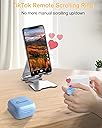
📲 Master your scroll, snap, and swipe like a pro!
The ADZERD Bluetooth Remote Control is a versatile wireless device designed for TikTok enthusiasts, readers, and selfie lovers. It offers a 33-foot Bluetooth 5.0 range, over 14 hours of battery life with an additional 86 hours via its charging case, and broad compatibility with iOS and Android devices. This remote simplifies video control, photo capture, and page turning, making it an essential gadget for multitasking millennials who crave convenience and style.


| ASIN | B0C7L9PVWP |
| Additional Features | Convenient Wearing, Page Turner for iPad, TikTok Scrolling Ring, USB-C Rechargeable |
| Battery Type | Lithium |
| Best Sellers Rank | #45 in Camera & Camcorder Remote Controls |
| Brand | ADZERD |
| Button Quantity | 10 |
| Color | Blue |
| Compatible Devices | iPhone, iPad, iOS / Android Phones Tables |
| Connectivity Technology | Bluetooth |
| Controller Type | Button Control |
| Customer Reviews | 4.0 out of 5 stars 6,962 Reviews |
| Manufacturer | ADZERD |
| Max Number of Supported Devices | 1 |
| Maximum Number of Supported Devices | 1 |
| Maximum Range | 33 Feet |
| Model Name | D01 Pro |
| Model Number | D01 Pro |
| Number of Batteries | 1 Lithium Ion batteries required. |
| Special Feature | Convenient Wearing, Page Turner for iPad, TikTok Scrolling Ring, USB-C Rechargeable |
| UPC | 793513624992 |
S**A
Ring broke but seller replaced quickly.
UPDATE 06/02/2023: I wrote my original review about a month ago and afterwards the seller reached out and offered to refund or replace. They quickly sent me a replacement even well after the 30 day return. I really like this device and am stoked to have one again for reading on the treadmill and for times when my arthritis is really bad. The battery life is stellar. I charge it maybe once a week and have never had it die. HELPFUL NOTES: This remote works best in the kindle app if you TURN OFF continuous scrolling. It works for continuous scrolling but it scrolls randomly. IT DOES NOT auto connect to my device but you just have to hold down the middle O button until the little light goes blue and turns off then works like normal. There’s a little instruction manual that takes maybe 30 seconds to read to best know how it works. PREVIOUS REVIEW: The controls are a little finicky but it always charged up and connected but the ring part suddenly broke when I put it on the other day. It’s super awkward to hold and there’s no way to resecure the ring back on. Disappointed in the sudden loss. Was a great tool to read and scroll while walking on the treadmill.
K**Y
Stopped working BUT PROBLEM RESOLVED and we are happy!!
It was great when it did work but that was short lived. Only lasted just over a month and we did not even use it very often. I stored it in its charging box for safe keeping so the problem isn’t damage from improper handling. It pairs fine but the controls no longer respond. Update: The seller was AMAZING about following up on this issue and did everything to make sure that the problem was resolved. They issued a refund and offered to send a replacement. This is GREAT customer service. I will not hesitate to order from them again because they care about their product and their customers. It really is a cool product and with such great customer service you don’t need to worry about your purchase. GET ONE, or two or three for Christmas gifts. Thank you!!!
K**T
Why isn’t it working properly?
When I first opened this item, I charged it to ensure it was at 100%. When I paired it with my iPad, everything was working fine and I as really excited to use this item to read my ebooks. I closed my iPad to go do something and when I came back to continue my reading, the little device never worked normally again. I’ve read the instructions (which aren’t complicated and very straightforward) and ensured that I was in video mode and not music mode. The instructions state that to use the kindle app on the iPhone/ipad, the setting needs to be on video mode. Ruling that out as a possibility for why the clicker wasn’t working, I tried to see if the device wasn’t paired right, if my assistive touch setting was wrong, and if I was clicking the buttons correctly ( you have to double click to turn pages on the kindle app, not click once), but I really couldn’t find anything I was doing wrong. 2 problems kept occurring when I would use the remote: 1) when I double clicked, instead of turning to the next page, the assistive touch dot would move without turning the page. Instead, the screen looked as if you touched it to look at the page numbers (you’ll know what I mean if you use the kindle app). Didn’t matter if I clicked the top or bottom arrow buttons, one of them functioned like they were supposed to. Pressing the middle button resulted in the same action. All 3 buttons, when pressed, just showed me the page numbers. 2) regardless of whether I double clicked the top or bottom buttons, the pages would turn in one direction, and that was backwards; it wouldn’t progress forward, leaving me unable to read my ebook. For these reasons, I will be returning this product. I like the size and if it functioned properly, I would’ve loved using this to read my ebooks and manga, but it just doesn’t work. I might try out a different product to see if it works correctly. Pretty disappointed :(
C**N
A review from a photographer and musician standpoint
For the price point, it is amazing. As a multitasking photographer, this works wonders and has a lot of different ways. You can set it up. Connectivity was pretty easy. I have it set up with my iPhone 17 Pro in my iPad 9. Buttons are easy to use, lightning fast. Only reason for giving four stars is, I wish it had Neuro haptics and could be trackable on the screen for typing purposes, other than that phenomenal item.
R**O
So worth the purchase
I use this as a Page Turner for my iPad. It’s phenomenal. Honestly, I’ve also paired it with my iPhone and sometimes use it to scroll through videos. The only thing that I don’t like is that I can’t speed up the videos twice with the device, but the usage for reading and acting as a page Turner is absolutely fantastic. I would highly recommend it to any girls who love using apps like Libby, Kindle, hoopla, or CloudLibrary to invest in this, especially if you have an iPhone. I do know that Kindles won't sync with us unless you have a 2025 or newer Kindle, because the Bluetooth settings on a Kindle device require it to be a listening device only. I think that’s only changed in the late 2025 models. I know it says it’s for TikTok, but girlie, this is a big option for those of us who hate having to keep the clip on our screen, which blocks a portion of the reading area on our devices. This is a complete Lee Bluetooth lead system, and the only thing you will notice is a clear, transparent square on your screen that occasionally moves to indicate you’re turning the page. It’s not distracting and doesn’t block any words from being visible.
E**Y
Stopped charging/working after 1 month
UPDATE** The seller worked with me and was very helpful to replace the faulty ring, it was super smooth and easy and the new one has zero problems! I REALLY liked this page turner when it was working. I got a holder for my phone and would sit in bed, snuggled under the covers and read my kindle books to my hearts content, but after a few uses it doesn’t seem to be charging anymore. I tried using a rubber binder and different things to hold it down and get it to charge, but unfortunately the little light showing it’s charging would disappear after a few seconds anyway. Then when I go to turn it on and connect it to my phone, the lights will blink for a couple seconds then turn off, I assume due to no charge for the battery. Unfortunately being a month later I can’t return it. I would gladly try the product again and hope this was just a fluke.
K**M
Gimicky
I really wanted this to work for us. Every night, my husband and I go to bed together and watch all the TikToks we sent to each other throughout the day. I ordered this because someone on TikTok recommended this (or something like this). I couldn't figure out how to set it up (and I'm pretty tech-savvy), so I asked my husband, which he did. It worked okay, was a little hard remembering which button goes up, down, back.... I also tried it in another setting, I ride a motorcycle in the summers and listen to music through my bluetooth helmet. Sometimes I want to skip a song, but while I'm riding, I don't mess with my phone, so I thought I could put this on over my gloves (also tried under gloves, what a disaster), so I could skip songs while I commute. Didn't work out, the buttons were too small and close together and gloves were too thick to be able to feel the difference. Another downside, for iPhone users, is you're stuck with a visible circle/button on the bottom of the screen all the time, (unless you go into settings and turn it off after use). It all ended up being so cumbersome. This thing sits at the bottom of my purse now, I keep thinking one day I'll pull it out to use it again, but I just don't bother.
T**Y
It's purple and wonderful!
So I was a do-do and did not realize this did not work natively with the Kindle Paperwhite device. I got click happy but no regrets. This does work with the Kindle App with my iPhone and iPad though so definitely have been using and it works If you are looking for that purpose this is great. You can be in bed or wherever while using this. You will need to set up AssistiveTouch. Instructions are below if it helps anyone. Setting Up AssistiveTouch on iPad: 1. Enable AssistiveTouch: • Go to Settings > Accessibility > Touch > AssistiveTouch. • Turn on AssistiveTouch. 2. Customize AssistiveTouch Menu: • In the AssistiveTouch menu, tap Customize Top Level Menu. • Add the Tap and Swipe Left actions if they are not already present. Pairing and Configuring the Remote: 1. Connect the Remote: • Turn on the Bluetooth remote and put it in pairing mode. • On your iPad, go to Settings > Bluetooth and select the remote from the list of devices to pair. 2. Create New Gestures: • In AssistiveTouch, tap Create New Gesture. • Create a swipe gesture by swiping left across the screen and save it. 3. Assign Gestures to Remote Buttons: • Go to AssistiveTouch > Devices and select your remote. • Assign the swipe gesture you created to a button on the remote. (move page up, move page down) Using the Remote with Kindle App: 1. Open the Kindle App: • Open the Kindle app and start reading. 2. Turn Pages with Remote: • Use the assigned button on the remote to turn pages in the Kindle app. Happy Reading! 🫶
D**P
Potential virus or malicious malware!
Unfortunately when I attempted to connect to the device via Bluetooth, the name came up “Virus 2.0” in my Bluetooth selection. Never before seen that… I did see the normal option to connect to the device. However when I tried again in a different location, the same two names came up: “Virus 2.0” and the products name. It sketched me out considering the instructions weren’t in English either and I decided to maintain the integrity of my device and not connect to a Bluetooth device that has a connection name of Virus 2.0. Not making it one star because the normal name did come up…. But I was too uncertain to attempt any connection.
S**6
works great
enjoy working with it
J**O
Bueno
Se conecta bien y es cómodo
ب**د
👍
👍
O**R
خاتم خفيف وممتاز
ممتاز واستفدت منه صراحة
Trustpilot
3 weeks ago
1 week ago