Buy anything from 5,000+ international stores. One checkout price. No surprise fees. Join 2M+ shoppers on Desertcart.
Desertcart purchases this item on your behalf and handles shipping, customs, and support to Brazil.
📸 Elevate your analog archives to digital masterpieces — don’t let your memories fade!
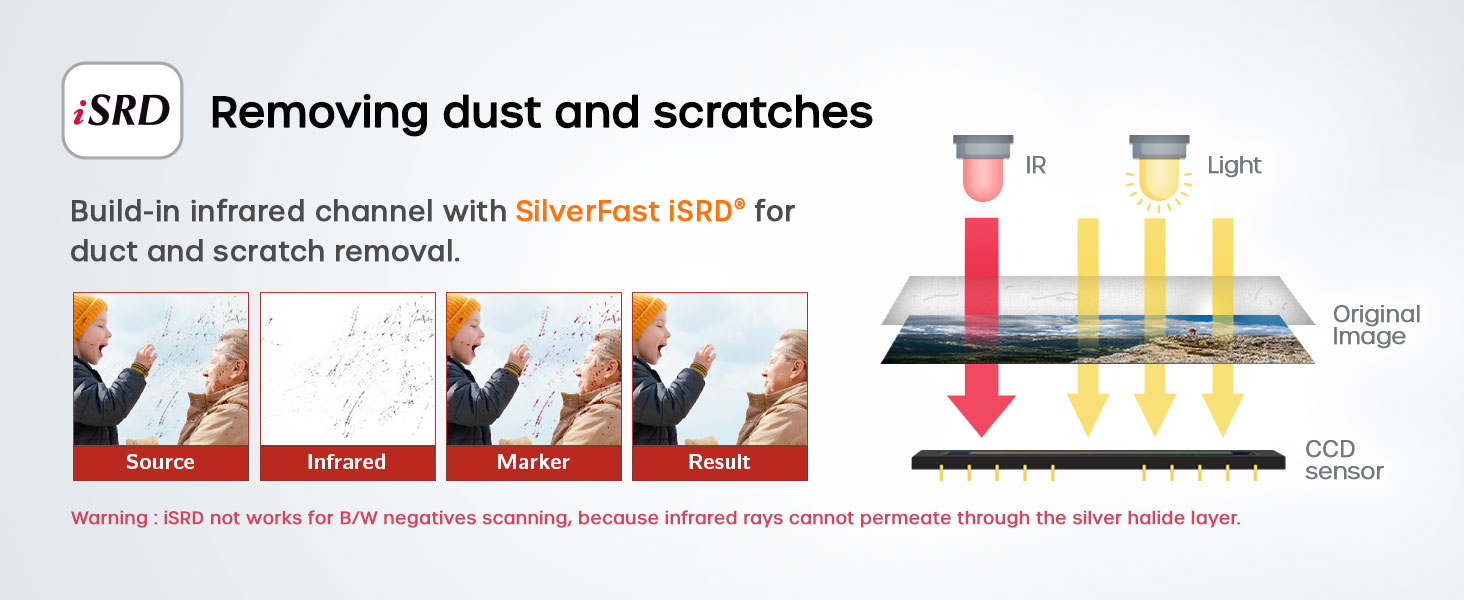
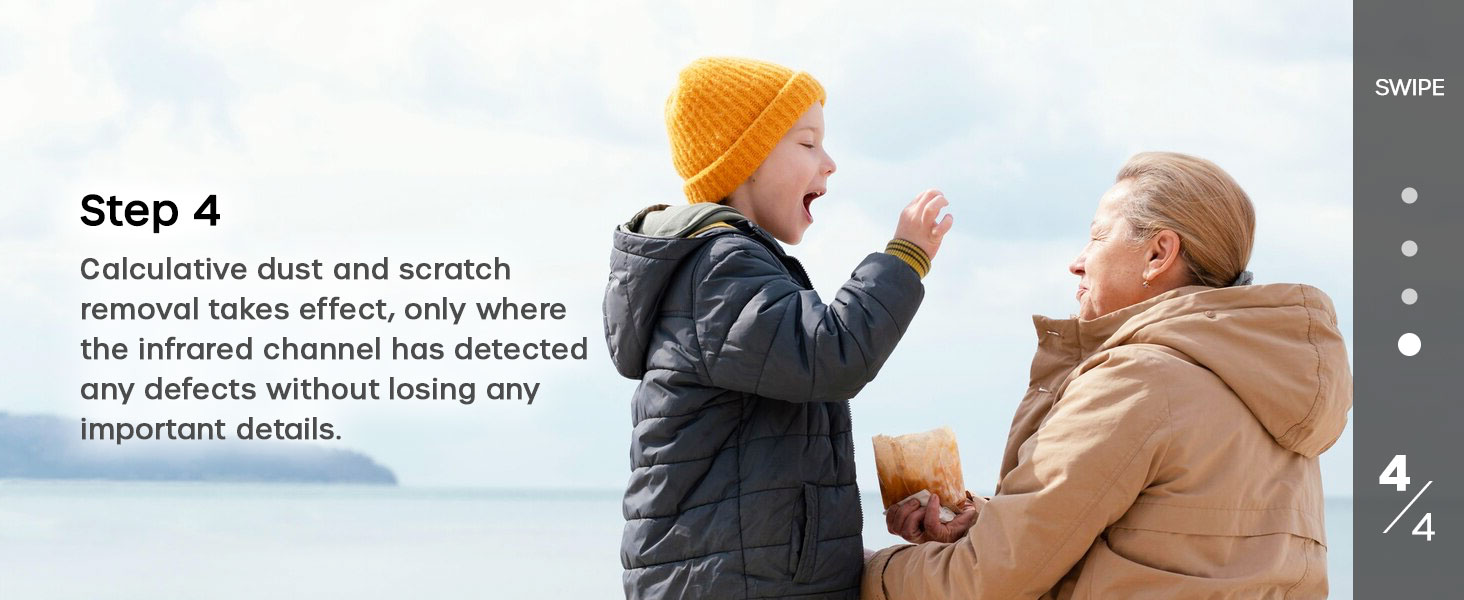
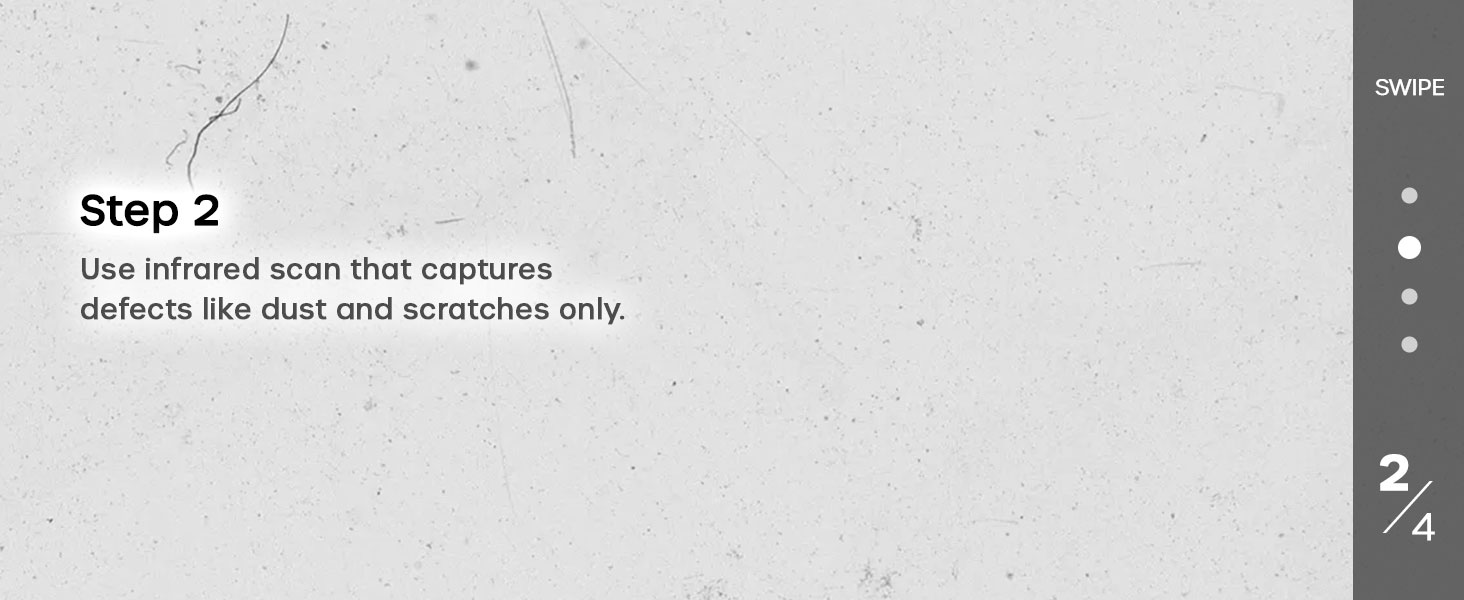
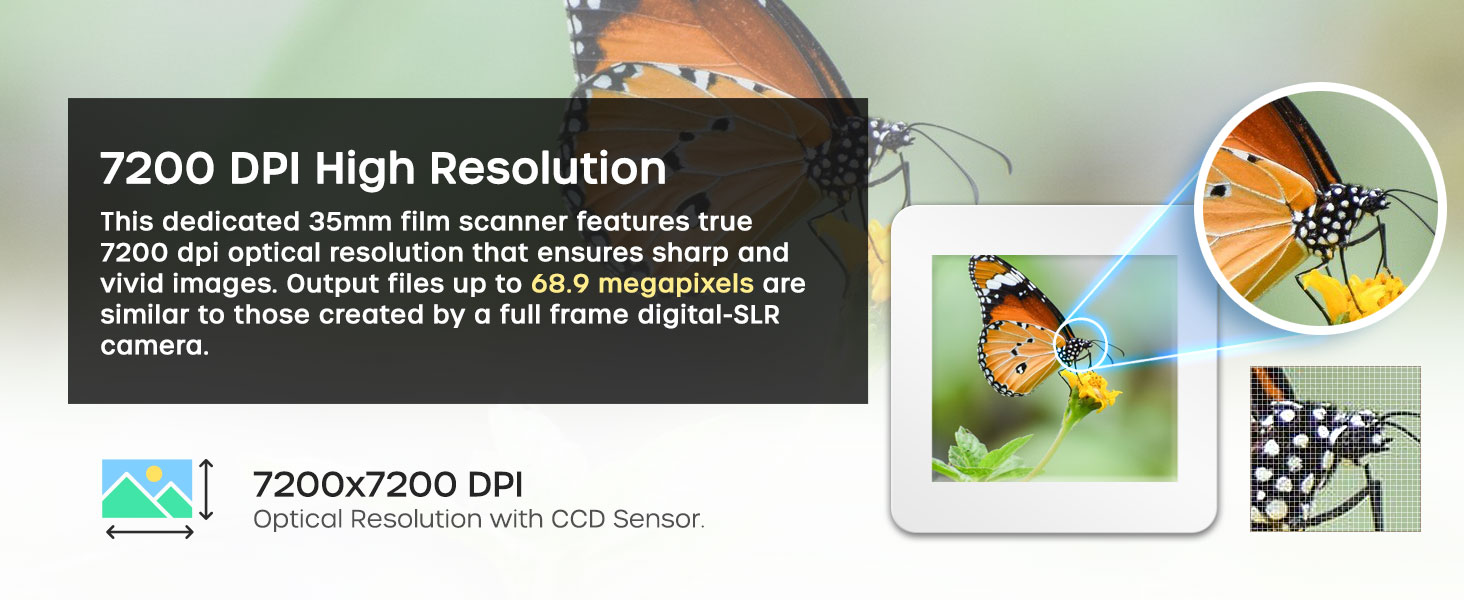
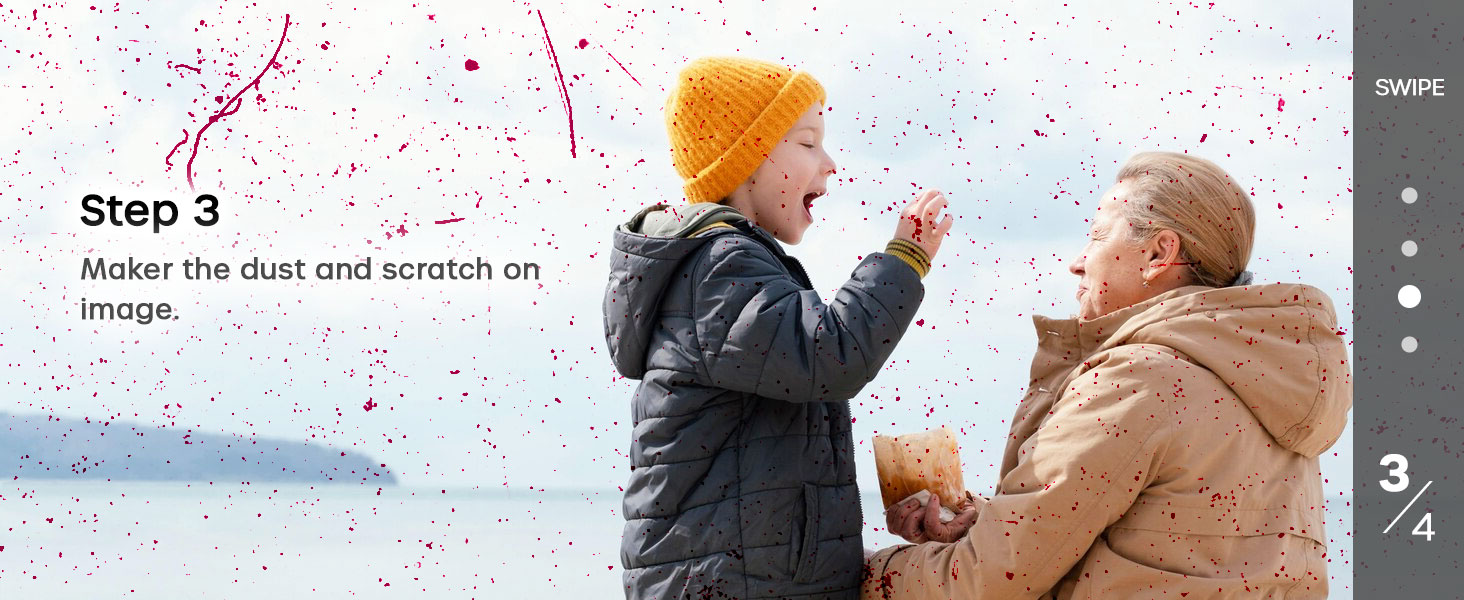
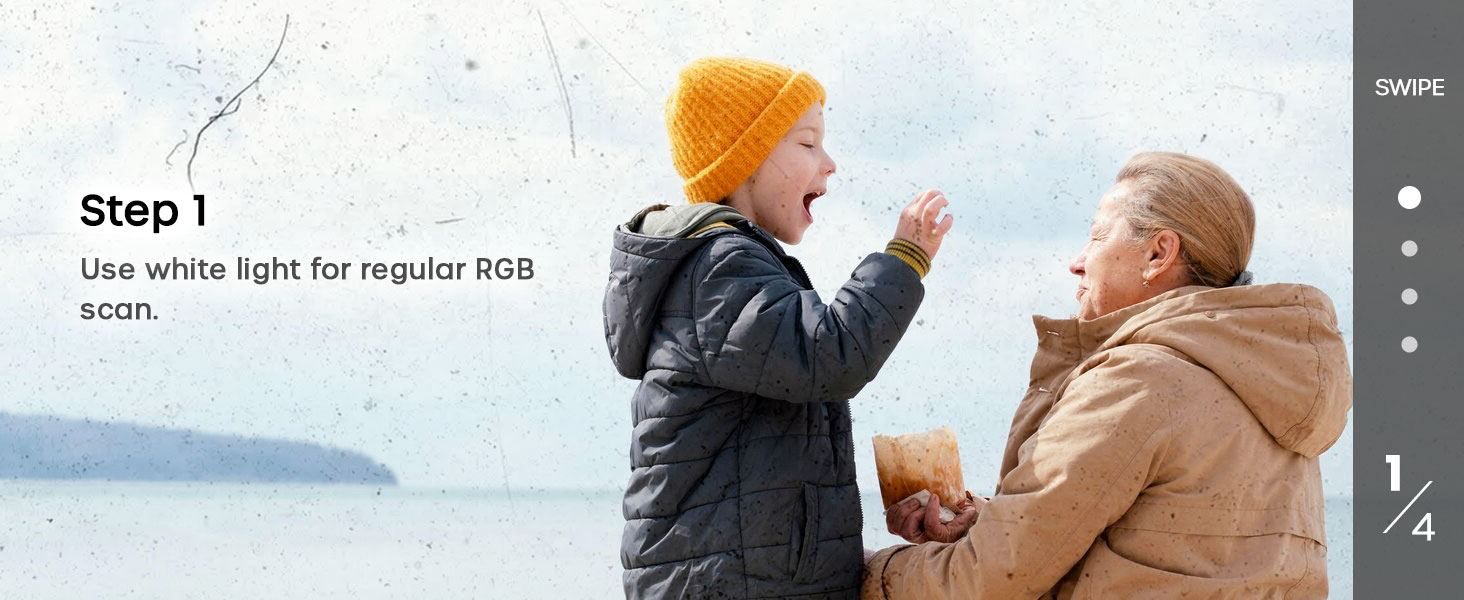
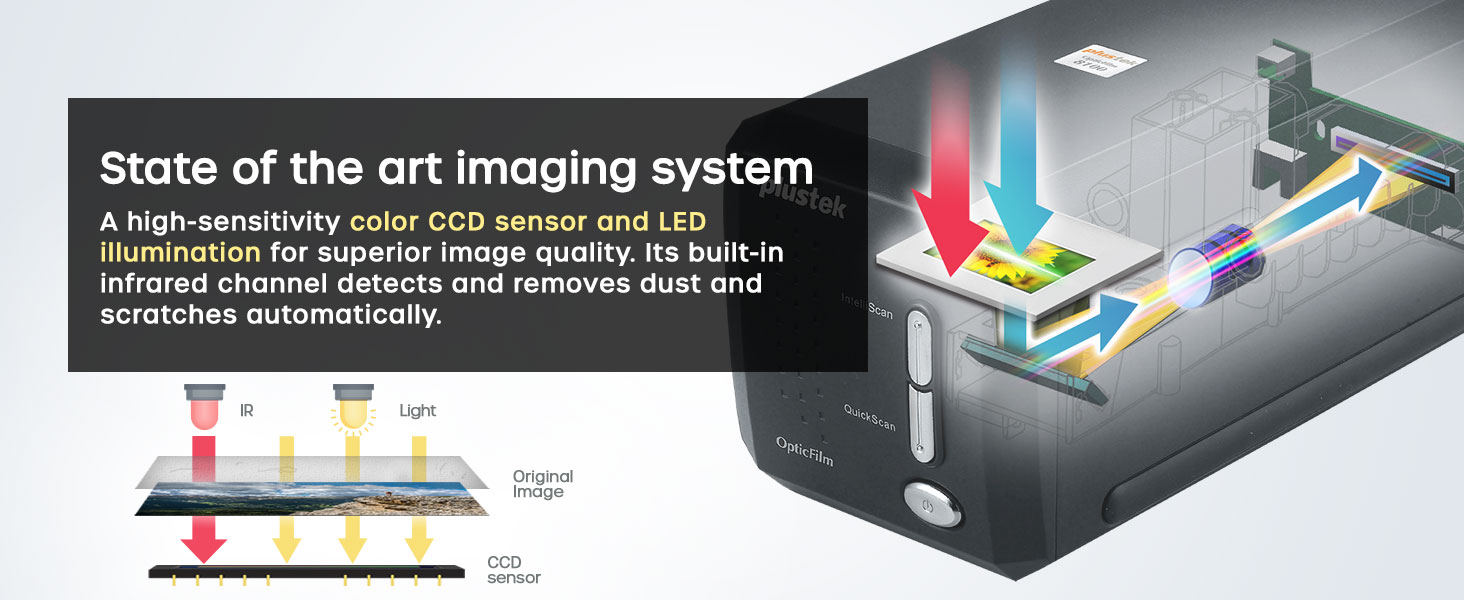
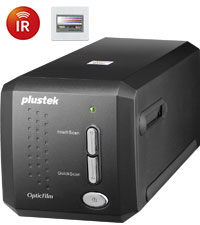
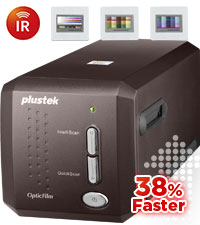
The Plustek OpticFilm 8200i SE is a premium 35mm film and slide scanner delivering ultra-high 7200 dpi resolution and 48-bit color depth. Featuring integrated infrared dust and scratch removal, it minimizes post-scan editing by automatically detecting and correcting defects. Compatible with both Mac and PC, it supports 64-bit systems and includes the SilverFast SE Plus 9 software bundle for advanced image processing. Ideal for professionals and enthusiasts aiming to preserve film with exceptional clarity and color fidelity.


| ASIN | B008ASJ2Z8 |
| Best Sellers Rank | #58,451 in Office Products ( See Top 100 in Office Products ) #31 in Slide & Negative Scanners |
| Brand | plustek |
| Color Depth | 48 Bits |
| Connection Type | USB |
| Connectivity Technology | USB |
| Customer Reviews | 4.0 out of 5 stars 858 Reviews |
| Global Trade Identification Number | 00808035087603 |
| Item Dimensions D x W x H | 4.72"D x 10.71"W x 4.69"H |
| Item Weight | 1.6 Kilograms |
| Manufacturer | Plustek |
| Media Type | Negatives, Photo, Slide |
| Minimum System Requirements | Windows 7 |
| Model Name | OpticFilm 8200i SE |
| Paper Size | 210 x 297 Millimeters |
| Product Dimensions | 4.72"D x 10.71"W x 4.69"H |
| Resolution | 7200 |
| Scanner Type | Photo |
| UPC | 808035087603 736913891366 |
| Unit Count | 1.0 Count |
| Warranty Description | 1 Year Limited |
K**H
Excellent for the money, though a bit slow to scan
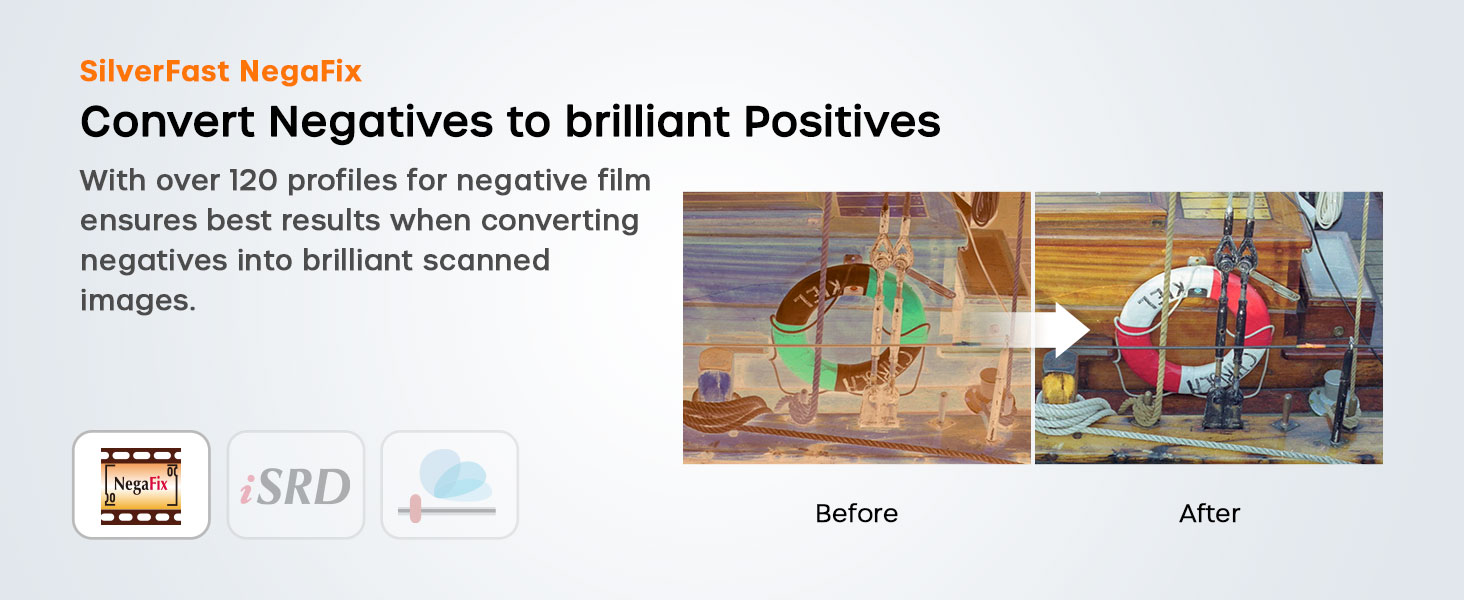
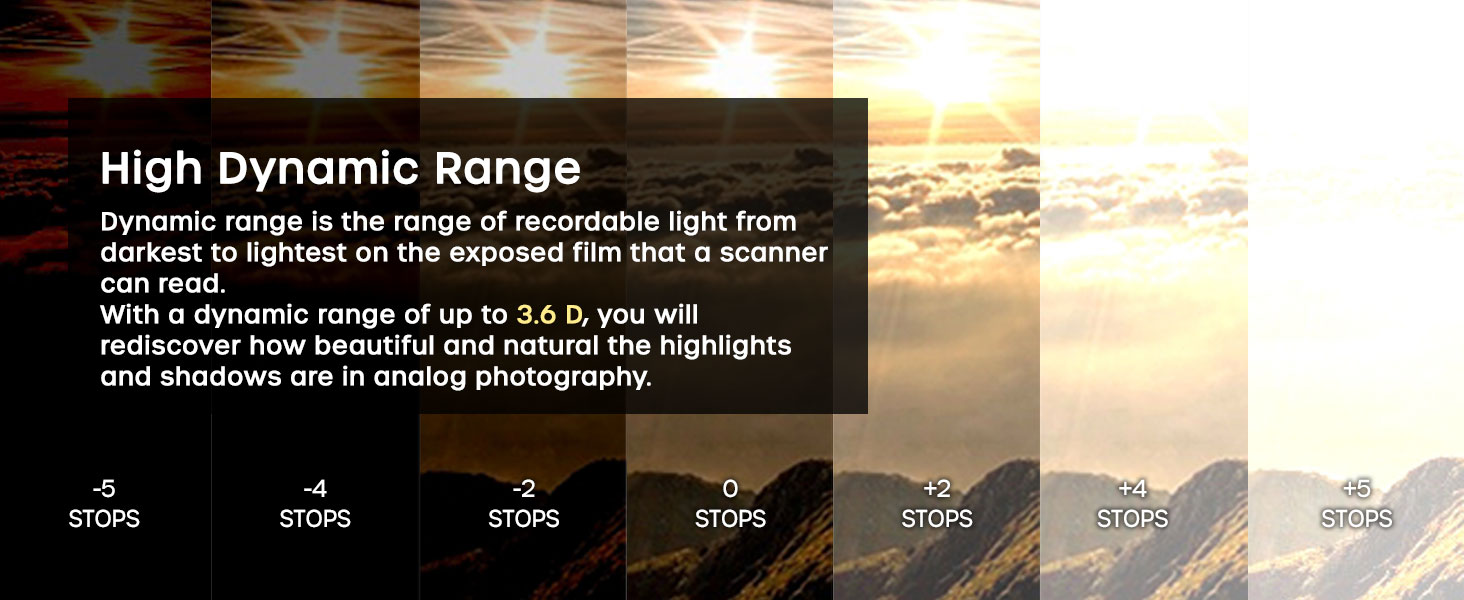
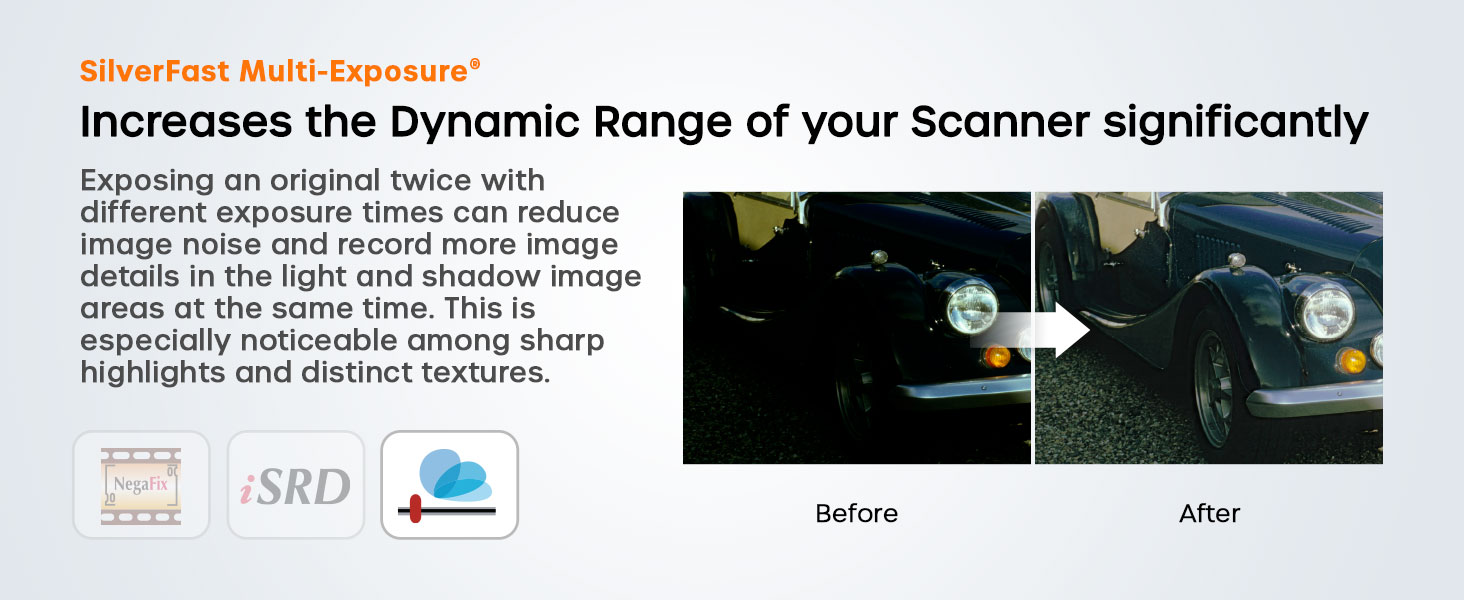
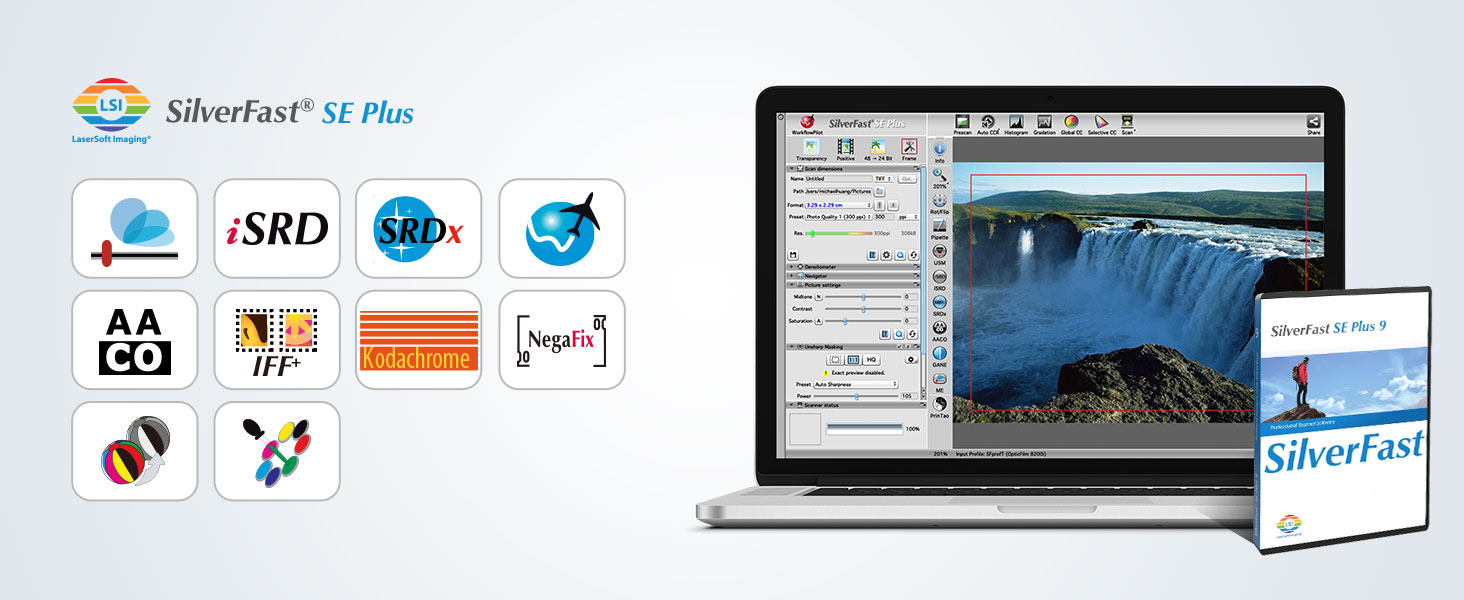
I've done a few hundred slides and negatives with this unit and the quality of the scans and the ease of use are really great. The SilverFast software is a nice bonus, but needs simpler documentation to use. First, there is no need to use most of these features if you have a photo editing software you like better, like Photoshop. The editing you can do in post (once scanned) should probably be some in some other software. Just use SilverFast to get the quality scan and do the rest elsewhere, IMO of course. 1 - Set the scan dimensions you want, name (SilverFast automatically increments the name, it will not overwrite), ppi, etc. The Format is a bit odd as it sometimes looks like it is giving you less resolution at a larger size, but it really isn't. My suggestion is to start at 3600ppi, unless you know you will need higher or lower resolution. Of course the speed changes a lot when you change the ppi. You also choose the file format here. I would have liked to see PNG format, but the JPEG quality options make this better than it would normally be. The other options (TIFF, etc) will make very large files, which is ok for a few scans, otherwise it would just be too much data. 2 - Set the proper Transparency/Negative options for what you are scanning. I would suggest setting the Frame to fullscreen. You can crop later. 3 - Turn iSRD and SRDx on, but turn off the 1:1 (Exact Preview). If you want to verify your SRDx settings, you can turn on the 1:1 after Prescan, or leave 1:1 on if you really want to adjust the SRDx settings for each scan. But normally a good setting can be found for all scans ( I set the detection to 1 and Tile Size to 3) and save this step. Also, "Bright Defects" is normally used for negatives and "Dark Defects" is normally set for slides. If you can get rid of 90% of defects without harming the image, consider it close enough. I leave iSRD set to Automatic, and it does a really great job in most cases. NOTE: iSRD can't seem to be used for B&W negatives or crazy things can happen. 4 - Turn all the other options (Densitometer, Picture Settings, NegaFix, and Unsharp Masking) to Auto. 5 - Put the film or slide in the middle position in the scanner, and Push Prescan at the top and wait for the prescan image to show up (30 seconds or so) If this part takes longer than 30 seconds, the magnifying glass is likely set to 100%, which is useful for some things but generally not necessary for the Prescan. Push the magnifying glass to change to full view or turn off 1:1 display on SRDx or iSRD. 6 - Picture Settings and NegaFix can be useful, but *only* in the cases where part of the image is overblown in a spotlight or some area is too bright or too dark. In these cases you can adjust the Midtone, Contrast, Exposure, and Tolerance. This can normally not be fixed afterward, which is why you'd want to do it prior to scanning. Generally SilverFast does a good job with auto brightness and I have only used these other options on a few occasions. 7 - Push the Scan button to do the final scan. If iSRD and SRDx functions are being used, the scan will take about 3 minutes. Otherwise it will take only 30 seconds, but the results will almost always be worse. It may seem like a lot but once you get going, you see that very few options need changing. It's mostly just the Prescan button, the Scan button, and sometimes the iSRD and SRDx buttons for dust/scratches. The results have been really impressive for both transparencies and negatives. Note: There is also a Multi-Exposure button that is either on or off. The idea is that it does a second scan (adding to the overall scan time) to get some details that could be lost in the darker background. However, I have seen little to no effect, at least on what I am scanning. YMMV. UPDATE REGARDING HDR: SilverFast includes the ability to do some sort of HDR or High Dynamic Range. The idea being, it takes multiple scans in different ways (multiple passes at different brightness levels, hard to explain) to get all available light information and store it all in 1 file. SilverFast calls this HDR RAW or HDRi RAW. An example would be a dark stage with a spotlight. Without HDR, there would simply be no way to get all the details in the spotlight, and also the details in the dark. If scanning time and disk space are not a concern, this is going to capture the most information from the scan, with 500MB per file. I'm not really sure the advantage or difference between HDR and HDRi, or why they have both options, maybe to save time/filesize. If you're going the HDR route, I would suggest the 64bit HDRi for color and 32bit HDRi for B&W, which are the maximums. You will then have a file with all information capturable by this scanner. Then the RAW TIFF files can be taken into Photoshop, and with the HDR Toning feature, you can literally extract the details from both the bright and dark areas, it is really amazing. However, the other thing you may notice as a downside (other than filesize and scanning time) is that iSRD and SRDx functions are off. Meaning you get all available information from the scans, but that includes the scratches and imperfections as well. These will have to be manually cleaned after scanning, which is not too hard to do with the Photoshop "Healing" tool. So if the original is in good shape, or has challenging lighting, and time/filesize are not issues, go with HDRi. If the original has lots of challenging damage, or you don't want to spend as much time scanning/cleaning after, go with the 7 steps above.
J**Z
Best bang for the buck for most users.
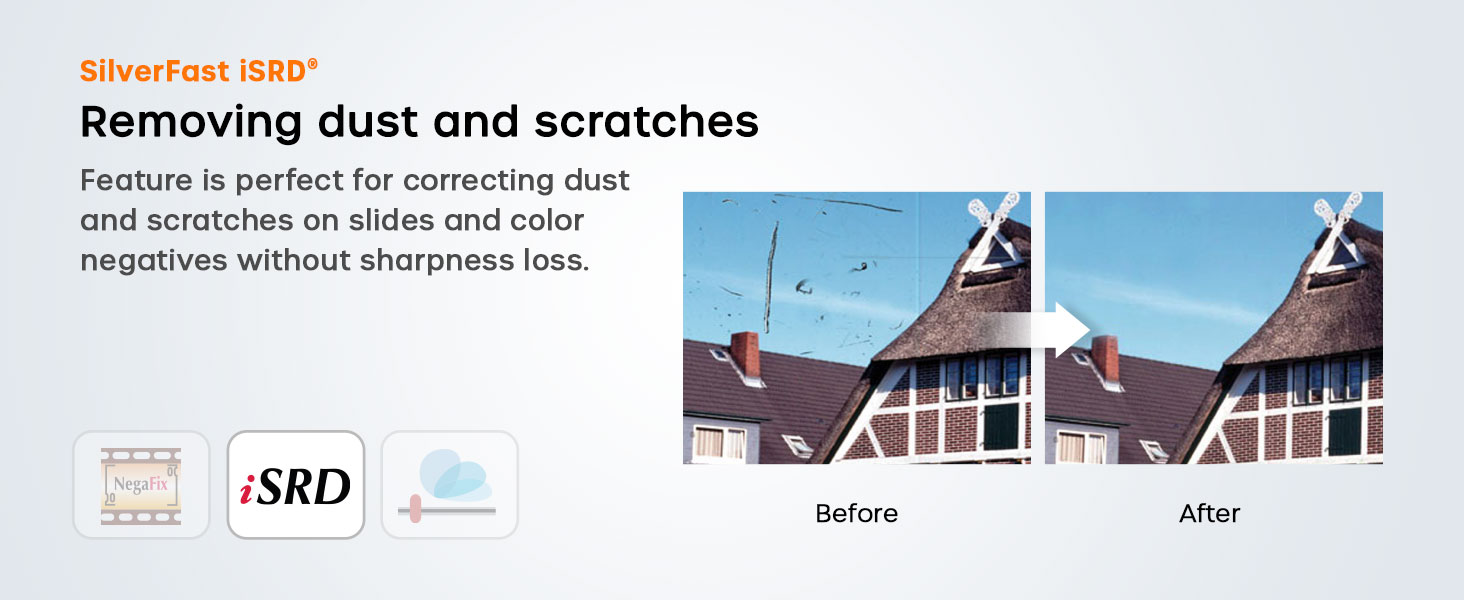
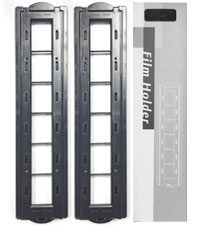
Setup was easy, I suggest downloading the driver from the Plustek site. The driver installation window didn't close or even say it was finished, but it was installed correctly. I opted for the SE package (rather than the AI) because I don't have a need for the additional calibration. I believe the hardware is the same for either bundle, so you're not sacrificing any specs by going with the SE. :) Most reviews say that the included SilverFast software is hard to use and may have installation problems. VueScan is one of the user-recommended programs, and I gave it a trial first. It's easy to use and as powerful as you'd like in terms of image adjustments when scanning (and will work with your other installed scanners.) I explored SilverFast further via its instruction booklet and online help videos, and while it's very capable, it's also very daunting. If you're scanning a few negatives and want to do a lot of fine-tuning up-front, it may be okay. But my intention is to capture 300+ rolls of film with a minimum of manipulation, and worry about retouching later as needed (knowing that only a small percentage would actually require revisiting.) So VueScan it is, and while it costs $90-100 on top of the scanner, it saves a lot of time and I feel is worth the investment. The Plustek's infrared dust/scratch removal is very helpful, but not perfect. It only gets you about 75% there (see photo comparison) but the little extra scanning time up-front will save a LOT of time (and frusration) retouching later. If you're not an absolute perfectionist, you will find the existing removal suitable, especially for the web or printing at home (home printer ink 'blurs' just a little bit and will disguise most remaining blems.) But if you're a perfectionist like I am, it's easy enough to spend an few minutes later to make each image 100%. :) Speed depends on the quality you demand. I am scanning color film with full 7200dpi resolution, using two "passes" and "heavy" infrared cleaning, and a strip of four frames takes just over 27 minutes from start (loading the negative strip into the carrier and scanning the frames) to finish (removing strip from carrier.) So it's easy to budget my time: a roll of 24 frames takes 2 hrs 45 min, and a roll of 36 frames takes about 4 hours. You can save a few minutes per frame by doing only one pass, and skipping the infrared cleaning, but I highly recommend the latter. When it comes to retouching them, you'll wish you'd spent that extra minute up-front. B&W film (one pass and no infrared cleaning available) scans considerably faster. Some reviews said the scanner is noisy or loud, but it's no louder than my Epson flatbed (which is quietish.) Other reviews suggested that the scanner sometimes crashes with full 7200dpi scanning, but with almost 20 rolls under my belt it hasn't happened yet using VueScan. The carrier was reoprted to break in a few cases, and it did start out hard to open and close, but it got a little easier over several rolls and no problems... yet. It might be smart to order an extra carrier or two, which covers you if one does break, and also improves your workflow as you load the next set of negs while the other set is in the scanner. I also saw a report of the frames always being skewed, and there's a little 'play' in the carrier, so it can happen. Easy to fix if needed, simply shift the strip. Same with the frame dividing slats that don't always match with the spacing on the film. That's a camera issue, and easily fixed by nudging the strip as needed. This scanner is manual feed - you advance each frame by sliding the carrier with click-stops, so there's no guesswork about lining-up the frames. I don't mind going frame-by-frame, since there's usually some adjustment that needs to be made to each frame anyway (density, crop, etc.) None of the scanners I compared in a wide price range got perfect reviews. The 8200i had the fewest objections, and I'm happy with it. It's not super-crisp... the film grain is a little soft without sharpening, but it can be sharpened afterwards and the grain 'pops' better. I would recommend it to 99% of the people who want to preserve their memories.
W**S
Very nice scanner for the price, solid, and great output. No worries here.
Got the 8200i in today, and installed the software quickly enough. I like the fact that the unit came with a carrying/protective bag roomy enough to fit all the cables, manuals, power supply, and accessories easily. The unit is quiet, well built and nice looking. The two film holder doors are easy to access and in about an hour from unpacking it, I had already scanned about 25 pics of my daughter. The software, Silverfast, is not all that intuitive, but there's a mode where you make the settings you want and preview the scan, place your framing, and then do the high rez scan. I like the output options, all the important and useful file formats are there. The scanner is pretty quick, maybe 30 seconds for a huge scan from 35mm film. Then, there's a 'Silverfast for dummies' way where it holds your hand. Red logo is the geek mode, blue is the dummy mode. The scans I did were of Extar film from about 1993, and pretty grainy, but I still got very nice and balanced images. Output files can be 7200dpi and you can get huge files, but if you're using fine grain film, it's worth it. Some of my Panatonic-X B&W images were awesome! Overall, this is a solid piece of engineering. Highly recommend it as long as it continues to work like it has today!
M**O
STAY AWAY - BREAKING SOFTWARE, NO SUPPORT!
It would be a comedy if it wasnt so frustrating. The required software that you have to purchase additionally constantly breaks with every update - now the scanner is completely unusable due to a software bug. I see previews just fine, but the final picture is just some garbled mess. Now if you try to fix it: You wont. There is not support in the US (good luck sending tickets into the void). And even then, nobody will help you fix the issue, because they either dont care or just dont know jack. Save you the trouble and buy something else! Anything is better. Also, if you ever do buy this subprime piece of slow hardware - DO NOT EVERY UPDATE THE SOFTWARE!
I**T
An excellent scanner with impressive software
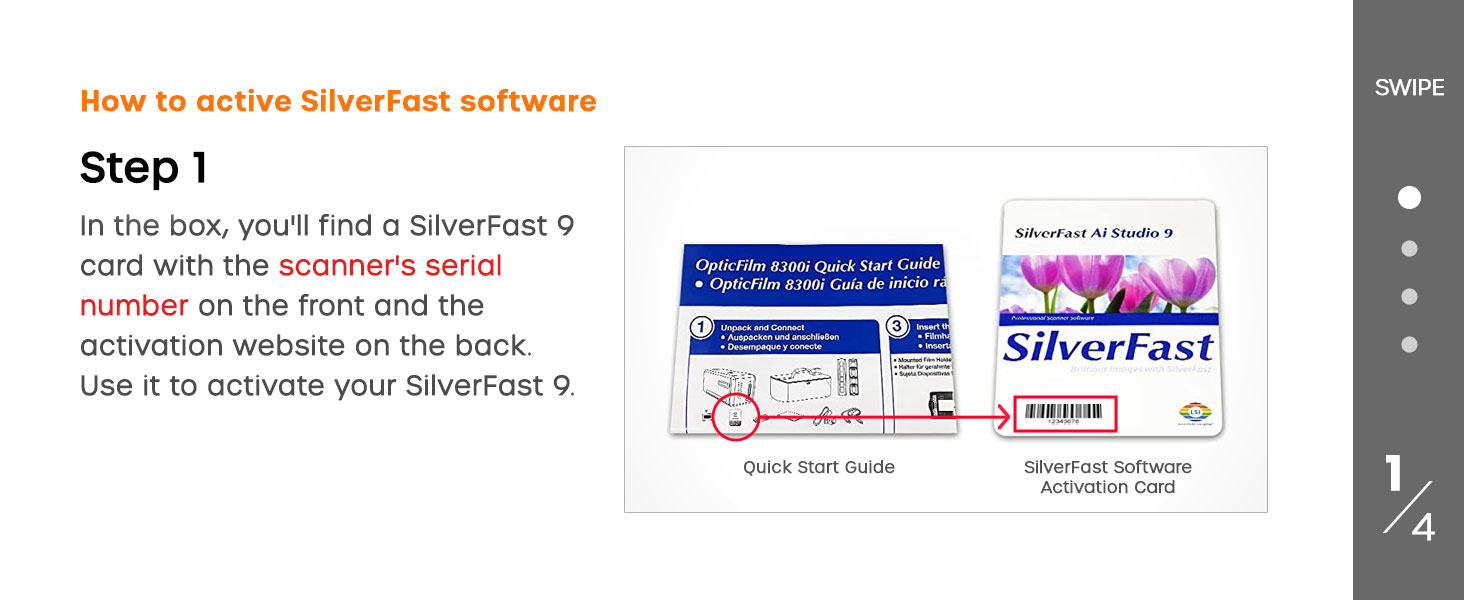
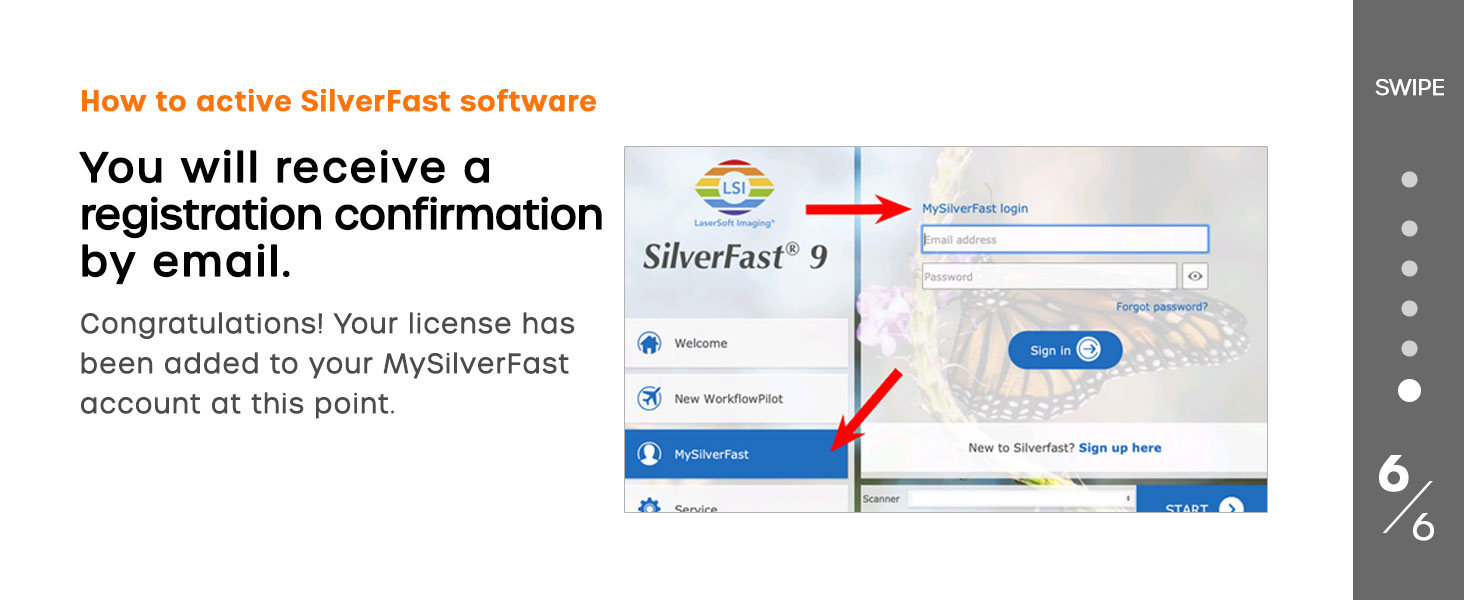
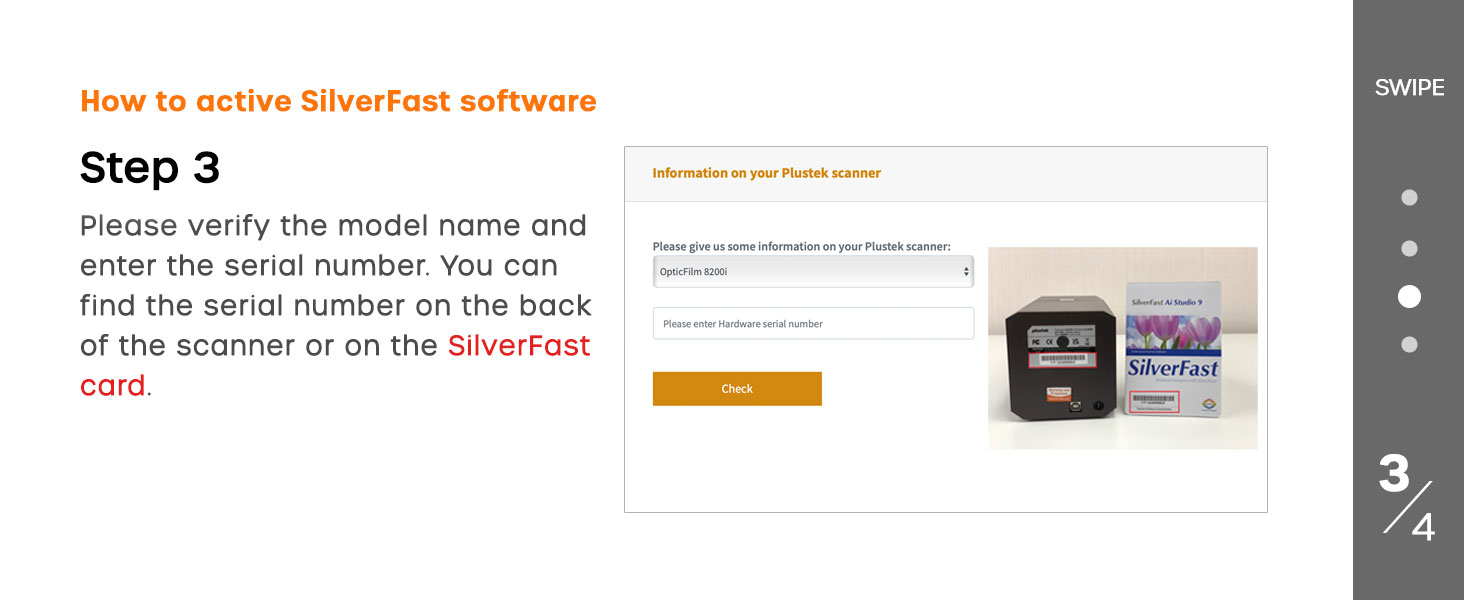
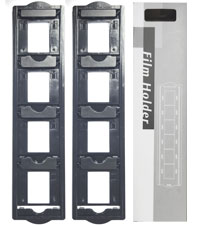
I purchased the Plustek 8200i two months ago, and I have used it to scan hundreds of slides and negatives since. The scanner and included Silverfast software have made it possible for me to begin to create a digital archive of my analog slides and negatives from the pre-digital camera era. I have found this scanner to be an invaluable tool for unearthing my own past, and I recommend it highly to anyone with the time and inclination to embark on such a project. Installation and registration: I installed first on a Windows 8.1 machine, using the included disks. The supplied installation instructions are a bit confusing, but installation went smoothly, and I was quickly prompted to download and install an update. I also wanted to install the software on my Macbook Pro, and that was a little more complicated. First, I had to contact Silverfast for a download of the installation package, since my Mac doesn’t have an optical drive. But I also had to get a new serial number for the Mac installation. Silverfast allows you to use the software on multiple computers, but only with one scanner. Thus your software is tied to the scanner, and the tracking associated with this may seem a bit complex. Communication with Silverfast support was fast and efficient. The software has a myriad of options. Learning to scan slides and negatives effectively takes some time and experimentation. You will get surprisingly good results quickly and with little effort, but if you want to get the most out of your data, you will need to learn to exploit the many features available to you. You will also need to learn how to properly handle and mount slides and negatives on provided brackets. Also you’ll want to check the film brand, type, and ISO and set it for those parameters or the closest alternatives in the scanning software. As others have noted, many slides and negatives will have dust and scratches. You can try to clean them, and I would recommend using compressed air very carefully to remove visible particles before mounting the media. But this is where the 8200i really earns its keep. It has an infrared scanning option that detects and removes scratches and dust from the image. It really works! I’ve scanned images that on prescan looked horrible, but had no trace of dust or scratches when fully scanned with the IR. So experiment with this function early in your initial tests! Another important feature is the ME option. Selecting ME instructs the scanner to do two passes at two different exposures. The results of the two scans are averaged, and the results are generally noticeably better than single scans. I almost always use this feature, though often the difference between an ME scan and a non-ME scan is subtle. Each additional scan, the IR scan and the ME scan, adds time to the total scan time for each image. Increasing the resolution also increases scanning time. Because I’m interested mainly in viewing images on a monitor rather than in printing images, I usually set the resolution to 2400 ppi. Higher resolution will not be noticeable on today’s monitors. At this resolution, each tiff file is just over 20mb. Problems? The scanner has gotten confused once or twice, for example, when I’ve hibernated my Windows machine with the scanner powered on and connected. I agree with other reviewers that the video-based help system takes some getting used to, but it is particularly useful when one first tries to gain familiarity with the software interface. But overall, the 8200i has exceeded my expectations.
K**N
Buggy software/driver
Since this is bundled with SilverFast9, I have to give it 2 stars. It scans fine, the problem is when using the bundled software that comes with the hardware, the software fails a lot with "unknown error" that requires a relaunch, sometimes multiple. Either SilverFast9 is to blame or the Windows driver. Either way, this product as packaged is to blame. Considering the time to scan when trying to get highest quality out of the scanner (5+ minutes per image), a random "unknown error" that kills a scan or requires extra minutes between each scan for a relaunch, it's a pretty awful issue.
M**R
A truly excellent scanner for 35mm negatives and slides
Plustek OpticFilm 8200i After trying a good quality flat bed scanner to convert my 35mm negatives and slides to digital with fairly unsatisfactory results, I started looking for a better method. After reading a number if articles about this scanner, I ordered one. The results are nothing less than astonishing, particularly the ability to virtually eliminate scratches and dust marks form both negatives and slides. That was not something my flat bed scanned could do, and tedious hours with Lightroom were needed to clean images up. No matter how carefully you have stored your photographs, they will have dust on them and there will be scratches. The scanner performs a final scan to detect these blemishes and eliminates them. You can blow them off with compressed air before scanning, but some dust will be left, and blowing off does not touch scratches. The included SilverFast 8 software installed easily on my iMac and was not hard to learn. In 1990, I made an extended visit to the then-USSR and took 30 rolls of Fujicolor and Kodak color negative film. This was duly processed on my return and 3x5 prints were made. At the time I was happy with them. It is hard to describe my surprise when I scanned these negatives and viewed the results. I had never see how colorful and clear these images were. I have also scanned slides I took way back in the 1960’s, and the results are perfect. Each slide or negative needs to be scanned twice - once for a pre-scan to allow you to line the image up and make any color corrections, and then a final scan. So, this process might take a few minutes per image. That is inescapable if you want a quality digital image when you are done. I am extremely pleased with this product and give it an unqualified endorsement. This is a really superior product and deserves your attention.
M**R
NOT as good as the Epson D700 flatbed but it DOES cost less .
So while the quality is acceptable, the software is insanely hard to work with and the speed at the highest resolution with IR on takes around 25 minted pre scan on my Mac Pro with Xexon processors, Dual Video cards and 64GB RAM. I'ms ASSUMING the software is not written to take advantage of any of that. In the end, it's a fair scan, about equal to doing it with your Digital camera but much slower. The IR dust and scratch removal was the other only highlight as it was better than ever my Digital Ice hardware. If you dolt have a good Flatbed scanner and you only want to do 35mm this is not bad, as long as you don't have a lot of slides to do. Oh, it's a 1 at a time scan, then move to the next one. Rinse and Repeat as they say. So the user time if far more significant than with a bath scanner like my Epson V700. The software crashed several times, and to be rebooted a couple time to work and it saw my external DVD drive to install it but refused to use it to verify my serial number. I had to contact tech support. I returned it.
Trustpilot
1 week ago
3 weeks ago