Buy anything from 5,000+ international stores. One checkout price. No surprise fees. Join 2M+ shoppers on Desertcart.
Desertcart purchases this item on your behalf and handles shipping, customs, and support to Brazil.
๐ก Elevate Your Projects with Clarity!
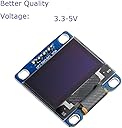
The DIYmall 0.96" OLED Module is a high-quality display solution featuring a 128x64 resolution and I2C interface, designed for seamless integration with popular platforms like Arduino and Raspberry Pi. With easy installation and customizable settings, this module is perfect for tech enthusiasts looking to enhance their projects.


| Best Sellers Rank | #2,122 in Single Board Computers (Computers & Accessories) |
| Customer Reviews | 4.4 out of 5 stars 518 Reviews |
A**I
good
best
C**Y
Great display
Works well with a little reading. I found that you DID NOT have to adjust the header file and only need to initialize the display with display.begin(SSD1306_SWITCHCAPVCC, 0x3C); Worked on both an Uno and a Mega. Uno Pinout SDA - A4 SDL - A5 GND - GND VCC - 5v Mega Pinout SDA - 20 SDL - 21 GND - GND VCC - 5v The example code for the SSD1306 really starts to push the memory of the Uno, but the Mega has no issue loading the program. Because it is an OLED, it will look dead until it has been initialized, which can be a bit confusing when you are first testing the screen. I thought I had a dud until I got it correctly initialized. Had no issues with 3.3v or 5v. Tested with a 30k Thermistor. #include <SPI.h> #include <Wire.h> #include <Adafruit_GFX.h> #include <Adafruit_SSD1306.h> #define OLED_RESET 4 Adafruit_SSD1306 display(OLED_RESET); #if (SSD1306_LCDHEIGHT != 64) #error("Height incorrect, please fix Adafruit_SSD1306.h!"); #endif #define THERMISTORPIN A0 // which analog pin to connect #define THERMISTORNOMINAL 30000 // resistance at 25 degrees C #define TEMPERATURENOMINAL 25 // temp. for nominal resistance (almost always 25 C) #define NUMSAMPLES 50 // how many samples to take and average, more takes longer #define BCOEFFICIENT 4400 // The beta coefficient of the thermistor (usually 3000-4000) #define SERIESRESISTOR 30000 // the value of the 'other' resistor int samples[NUMSAMPLES]; void setup() { Serial.begin(9600); // connect AREF to 3.3V and use that as VCC, less noisy! analogReference(EXTERNAL); // by default, we'll generate the high voltage from the 3.3v line internally! (neat!) display.begin(SSD1306_SWITCHCAPVCC, 0x3C); // initialize with the I2C addr 0x3D (for the 128x64) // init done // Show image buffer on the display hardware. // Since the buffer is intialized with an Adafruit splashscreen // internally, this will display the splashscreen. display.display(); delay(250); // Clear the buffer. display.clearDisplay(); } void loop() { uint8_t i; float average; float maxTemp; maxTemp = 0; // take N samples in a row, with a slight delay for (i=0; i< NUMSAMPLES; i++) { samples[i] = analogRead(THERMISTORPIN); delay(10); } // average all the samples out average = 0; for (i=0; i< NUMSAMPLES; i++) { average += samples[i]; } average /= NUMSAMPLES; display.clearDisplay(); display.setTextSize(1); display.setTextColor(WHITE); display.setCursor(0,0); Serial.print("Analog "); Serial.println(average); display.print("Analog "); display.println(average); // convert the value to resistance average = 1023 / average - 1; average = SERIESRESISTOR / average; Serial.print("R "); Serial.println(average); display.print("R-Val "); display.println(average); display.setTextSize(2); float steinhart; float fconvert; float convertValue; steinhart = average / THERMISTORNOMINAL; // (R/Ro)2 steinhart = log(steinhart); // ln(R/Ro) steinhart /= BCOEFFICIENT; // 1/B * ln(R/Ro) steinhart += 1.0 / (TEMPERATURENOMINAL + 273.15); // + (1/To) steinhart = 1.0 / steinhart; // Invert steinhart -= 273.15; // convert to C Serial.print(steinhart); Serial.println(" *C"); fconvert = steinhart * 1.8; fconvert = fconvert + 32; Serial.print("Temperature "); display.println("A0 Temp"); Serial.print(fconvert); Serial.println(" *F"); display.print(steinhart); display.println(" *C"); display.print(fconvert); display.println(" *F"); display.display(); delay(250); }
S**Y
Pin out was as described in the photo
Came as described. A lot of images of these devices show a pinout that is different to what is actually sent.
G**X
Very Nice Display, Easy to use Bright, Clear, and VERY high resolution
With its crystal clear display and easy I2C connection, this little OLED went easily into my project and looks terrific. The link provided to the library worked well. It is I2C address 0x3C, so don't get confused by the markings on the back of the board. I did, but used an I2C scanner and sure as heck, their docs were correct! Adafruit's library is what makes this great, and making bitmaps for images is very easy using the tool at: [...]f you are using it for Arduino (or Particle Photon, as I am in this project). I bought one to see how it would look for my project and it is going into 7 more that I am making; I just bought 8 more. Seller shipped fast and it arrived in a nice padded envelope, perfectly packed for the journey.
D**G
Almost works out of the box on latest version of Arduino IDE.
Most importantly, the hardware works fine and the i2c is a big GPIO saver. However, the supporting zip file has some "gotchas" and could use a bit of editing though the instructions are reasonably easy to follow. I'm relatively new to Arduino and I was able to connect this oLED display to an Arduino Uno R3 and upload the example sketch using Arduino IDE 1.8.1 almost immediately. Almost. My rating is based mostly on the supporting information and libraries which are downloaded from the link in the product description which make it not very friendly for new users. (1) The version of the library provided did not compile on the first try. I had to modify it (see below) to work on Arduino IDE 1.8.1 apparently because of an update to the avr-gcc compiler used by Arduino IDE 1.6.x and above. There is an Arduino Wiki on github with an FAQ that explains the issue further and points a finger at the libraries (which are provided by the seller.) To get around this, in the PROVIDED example sketch titled ssd1306_128x64_i2c: I changed: static unsigned char PROGMEM logo16_glcd_bmp[] = To: static unsigned const char PROGMEM logo16_glcd_bmp[] = (2) The libraries are modified versions of the Adafruit libraries for the Adafruit version of the 1306 display. If you have a mix of this product and the Adafruit version, be warned that to switch between them may mean either modifying the provided libraries to make them unique to this device, or uninstalling and switching libraries every time you switch devices. This is a real potential for heartburn in my opinion. (3) Don't use the stock Adafruit example Sketch in the Arduino IDE. Instead, go to the support file you downloaded to find the modified library and example sketch. It has the i2c address updated to their stock address (0x3C on the one I received) so there isn't a need to research the address or use an i2c scanner sketch on your Arduino to find the address. Also, the vendor didn't bother to update the description in their version of the Adafruit example sketch. (4) Wiring for their example sketch - display SDA to UNO pin A4; display SCL to UNO pin A5. The notations in the Sketch indicate it requires three wires (2 for i2c and one for reset) but the vendor's instructions explain that they handled the reset pin a differently. The vendor also left in the link in the top of the example sketch which points to the product sales page on Adafruit. My Arduino brand Uno R3 was able to power the display using the 5V and GND pins. If you are on the latest IDE, you should be able to get this running in little more time than it takes to install the provided libraries (the provided instructions assume you know how to do this) and upload the sketch. I want to be clear that I did not attempt to use any of the "stock" libraries or "stock" examples so any and all issues have absolutely nothing to do with Adafruit/Limor Fried whose work was used extensively to support this product.
M**C
Great display at an easy price!
I have ESP8266 controlling a dual relay for in-floor radiant heat as well as radiant towel warmers in the bathroom. Of course, this is connected via WiFi to our Home Automation Software but we still wanted a display to tell us time remaining on the towel warmer and if the software was calling for heat. This little display is going to be mounted in a Decora box along with the sensor and micro-controller. It was trivial to hookup and make work using NodeMCU/Lua. There's no documentation but the display as noted is 64x128 pixels. What's not documented is the top 16 lines are yellow and bottom 48 are blue. It actually looks pretty good and I'd prefer a two color display. (The colors are actually more legible to the naked eye than to the camera lens.) I'll be ordering a few more.
Trustpilot
2 days ago
1 month ago