🔐 Unlock the future of home security with effortless style and control!
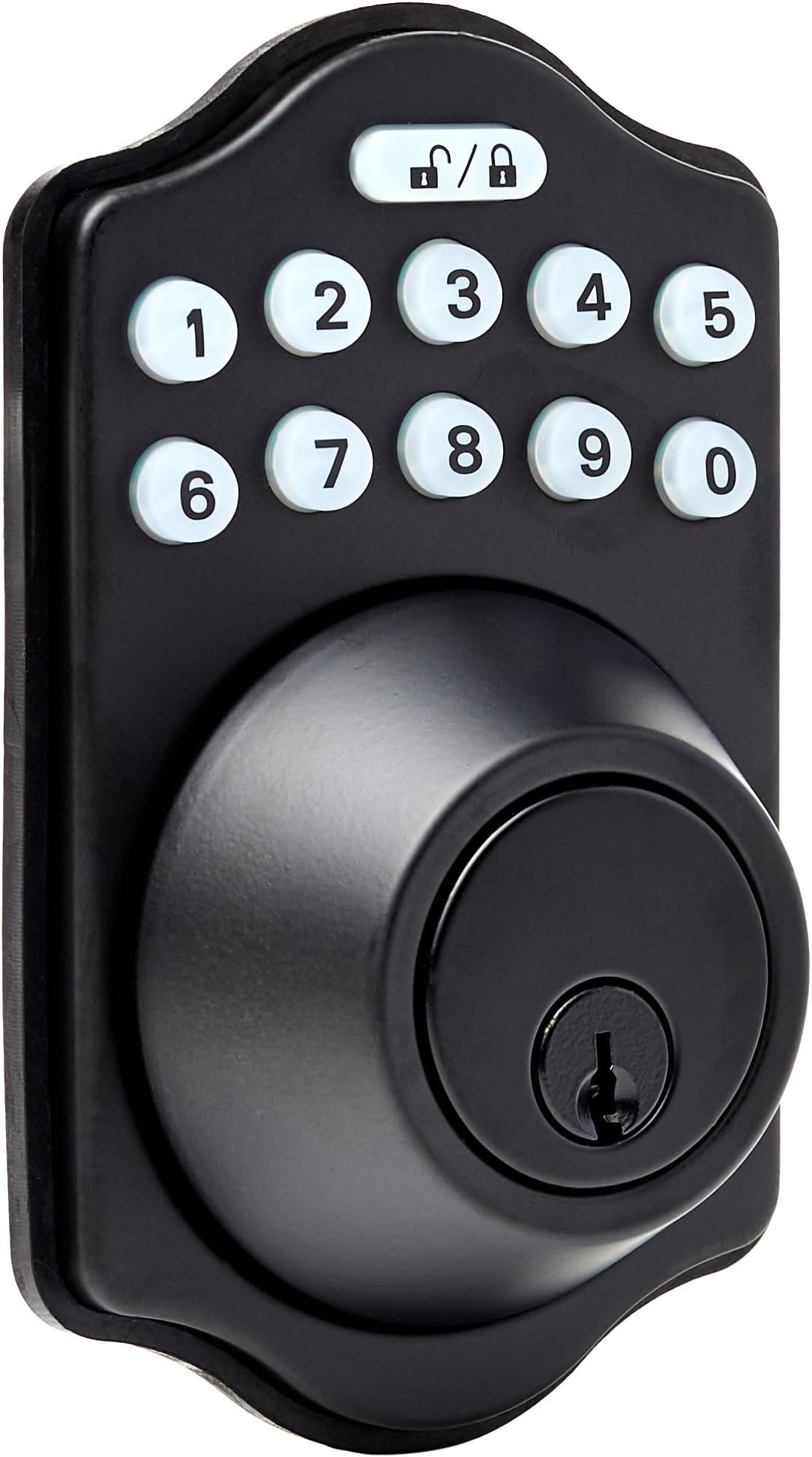
The Amazon Basics Electronic Keypad Deadbolt combines sleek matte black design with advanced keyless entry technology. Featuring up to 6 customizable user codes plus temporary guest access, automatic locking, and compatibility with standard door sizes, it offers flexible, reliable security with both keypad and traditional key options. Ideal for professionals seeking smart, convenient home protection without sacrificing style.


| Brand | Amazon Basics |
| Color | Matte Black |
| Item dimensions L x W x H | 9.05 x 6.13 x 2.99 inches |
| Lock Type | Keypad |
| Special Feature | Keyless |
| Style | Traditional |
C**A
Decent quality for the price. Will buy more.
Been using it for a month now and it’s been working great. Installation was fairly easy. Programming is a little odd sometimes. Some entries have to be done with the deadbolt “locked/engaged” and others have to be done with it “unlocked” and it can be confusing to remember which is which. Other than that, the lock itself seems to be good quality.
A**F
Secure, Convenient, and Easy to Use!
This Amazon Basics electronic keypad deadbolt is excellent for home security. The keyless entry is incredibly convenient — no more fumbling for keys or worrying about losing them. Programming the codes was simple, and the lock feels sturdy and reliable. The design is sleek and functional, fitting perfectly on standard doors. It provides peace of mind knowing that my home is secure while offering the ease of quick access for family or guests without extra keys. Overall, this is a high-quality, easy-to-install, and convenient deadbolt — perfect for anyone wanting modern, keyless security for their home.
D**S
DO NOT BUY! Barely Functions as a Lock! Picks Open On a Single Pin!
I honestly don't know what to say. This HAS to be a quality control error, but if that's the case, I would avoid this lock anyway. It uses a KwikSet KW1 keyway, that's fairly normal. But it utilizes it in the worst way possible. I was able to open it by picking it on a single pin. No special binding order, just apply some tension, hit pin 5, and turn it open. I haven't been picking locks for very long, only a few years now and this is, by far, the easiest lock to open that I've ever run across. Other than that, it looks the part! It seems like it should be super secure and will probably ward off most would-be burglars. But this isn't something I'd recommend for ANYONE to use in ANY application. It's THAT bad! I wouldn't even trust it to lock a 3 year old out of a room.
J**H
Reset might be required before install
Easy to install with one caveat. If the lock isn’t at factory reset settings when installing it might not do rehanding properly. The programming code would only work with the door locked and would unlock when pushing the lock button and lock when pressing the unlock. I fixed this by installing batteries with the lock not connected to the keypad and pushing the reset button
M**N
Door entry
Looks and works goid
E**K
Secure and Convenient Keyless Entry Solution
Well, this Amazon Basics Electronic Keypad Deadbolt is a decent foray into keyless entry, particularly if you're not looking to break the bank. Out of the box, the oil-rubbed bronze finish has a classic look that blends well with traditional decor, and it doesn't feel cheap in your hand. Installation was relatively straightforward for someone with a basic understanding of DIY, taking about 20 minutes to swap out an existing deadbolt. It fit perfectly on my standard 1-3/8 inch door. The keypad itself is responsive, and programming the user codes was intuitive enough, though the instructions were a bit sparse on advanced features. I appreciate the ability to set up to six user codes, which is ample for family members, plus the option for a temporary single-use code for contractors or visitors—a thoughtful touch. The automatic locking feature, adjustable from 10 to 99 seconds, is a real convenience, ensuring you never second-guess whether you've locked up after leaving. While the touch control is nice, there's always the backup of a traditional key, and the thumb turn on the inside feels solid. It's not the most feature-rich electronic deadbolt on the market, but for basic, reliable keyless entry, it certainly gets the job done.
J**L
My instructions were garbage. See below…
If your instructions don’t work, it’s not you, it’s the wrong instructions and they’ll NEVER WORK. I worked on this simple lock for HOURS with no avail!!!! One of the reviews used instructions from Kwikset but lacked the part for deleting the factory programming code. Here’s the FULL INSTRUCTIONS: here’s how to run the door handing identification process on your AmazonBasics Electronic Deadbolt: On the keypad, enter the preset Programming Code (0000). Next, press the Unlock / Lock button. Press 0, then press the Unlock / Lock button. You’ll hear the motor of the lock run, then stop after a few seconds, indicating the door handing identification process is complete. So that’s all you need to do to teach the lock the orientation of your door (door handing identification). How to Change the Default/Existing Programming Code on Your AmazonBasics Electronic Deadbolt? So after performing the door handing identification, the next thing you want to do is change the default Programming Code. As you probably know, this lock comes with a 4-digit default Programming Code (0000), and you’ll need to change the default code to ensure security. To change the default/existing Programming Code on your AmazonBasics Electronic Deadbolt, follow the steps below: Enter the default Programming Code (0000) and press the Unlock / Lock button. If you’ve previously changed the Programming Code, enter your current Programming Code and press the Unlock / Lock button. Press key 4, and then press the Unlock / Lock button. Enter a new Programming Code (4 digits), then press the Unlock / Lock button. If the lock flashes green twice and beeps twice, it means the operation is successful. So the new Programming Code is now in effect, and you can use it to program other functions in the lock. Deleting the Default User Code Like the default Programming Code, the lock also comes with a default User Code (1234). Note that Programming Code differs from User Code. Programming Code is used to put the lock in programming mode, while the User Code is used to unlock the lock via the keypad. So you’ll need to delete the default User Code to prevent unauthorized access to your home. Here is how to delete the default User Code on your AmazonBasics Electronic Lock: Enter your Programming Code and then press the Unlock / Lock button. Press 2, then press the Unlock / Lock button. Enter the default User Code to be deleted (1234) and press the Unlock / Lock button. This will delete the default User Code. Note: You can use this method to delete any existing User Code on your lock, including the ones you created. You’ll only need to enter the code you want to delete in the last step—as you can see above. More so, you can delete all existing User Codes in your lock at once. Here’s how to do that: Enter your current Programming Code and press the Unlock / Lock button. Press key 3, and then press the Unlock / Lock button to complete the process. The lock will flash green twice, followed by two beeps, showing that all existing User Codes have been deleted. How to Add New User Codes on Your AmazonBasics Electronic Keypad Deadbolt? After deleting the default User Code, the next thing you want to do is create new User Codes. Note that you need to create User Codes to be able to unlock the lock via the keypad. So here’s how to add a new User Code: Enter your Programming Code and press the Unlock / Lock button. Press key 1, and press the Unlock / Lock button. Enter a new User Code (4 to 10-digit number) and press the Unlock / Lock button. The lock will flash green twice, followed by two beeps, showing that the new User Code is now in effect. Repeat the steps to add more User Codes. Note that the lock allows you to store only 10 User Codes at a time. If you’ve added up to 10 codes, you’ll need to delete one to add a new code. How to Disable/Enable All User Codes on Your AmazonBasics Electronic Deadbolt? If you don’t want anyone you shared User Codes with to unlock the lock, you can simply disable all the User Codes. That is, the lock can’t be unlocked with a User Code during this time. To disable all User Codes on your lock, follow the steps below: Enter your Programming Code and then press the Unlock / Lock button. Press key 8, then press the Unlock / Lock button. To enable all User Codes, repeat the steps above. How to Create a One-time User Code on Your AmazonBasics Electronic Deadbolt? A one-time User Code is used just once. That is, the code expires once it is used to unlock the lock. You can create a one-time User Code for a serviceman or any guest you just want to give one-time access to your home. That said, here’s how to create a one-time User Code: Enter your current Programming Code and press the Unlock / Unlock button. Press key 9, then press the Unlock / Lock button. Enter a one-time User Code (4 to 10 digits), then press the Unlock / Lock button. Enabling/Disabling Auto-Lock This AmazonBasics Electronic Deadbolt comes with the auto-lock feature that automatically locks the lock after a few seconds (when the door closes). However, this feature is disabled by default, and you need to enable it to get it working. Here’s how to enable auto-lock on your AmazonBasics Electronic Deadbolt: Enter your current Programming Code and press the Unlock / Lock button. Press key 5, then press the Unlock / Lock button. This will enable auto-lock in your lock. So the lock will lock automatically after 30 seconds of closing the door. To disable auto-lock, repeat the steps above. And if 30 seconds delay time is not okay for you, you can set it to your preferred delay time. Here’s how to do that: Enter your Programming Code and press the Unlock / Lock button. Press key 6, and then press the Unlock / Lock button. Enter delay time (10-99 seconds) and press the Unlock / Lock button. How to Factory Reset Your AmazonBasics Electronic Deadbolt? If you have some little issues with your lock, such as lost/forgotten Programming Code, you can reset the lock and then use the default Programming Code to reprogram it. Note that this action will permanently delete all your custom settings, meaning you have to start all over again to program the lock. That said, here’s to factory reset your AmazonBasics Electronic Keypad Deadbolt: Remove the battery cover to find the Reset button (a round button labeled “R”). Next, press and hold the button (for about 6 seconds) until you hear three beeps. The three long beeps show that the reset is successful. Next, perform the door handing identification to ensure optimal operation (see how to perform door handing identification above). You’re welcome. ;)
A**Z
Great Smart Lock for Everyday Use
I like having the option to unlock the door without keys, which is great for family members and guests. It feels solid, secure, and well made.
Trustpilot
2 weeks ago
1 month ago